Scout
Scout is the Module of UrbanDataLab that allows you to explore real estate assets and interact with them on maps. You can access Scout by clicking on the top bar item that symbolizes a map.
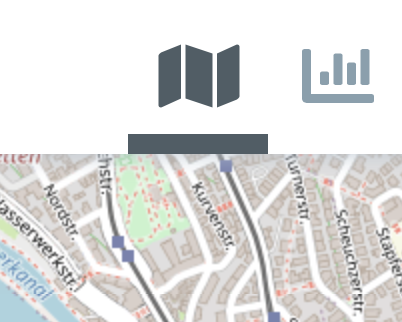
Left bar Menu items
On the left bar menu you can find three 4 buttons, select, edit, save and user. Each of them will described in this chapter.

Select
Clicking on the button select, you can choose from a list of available layers.

After opening the menu, you can click on the attribut dropdown to select a layer.

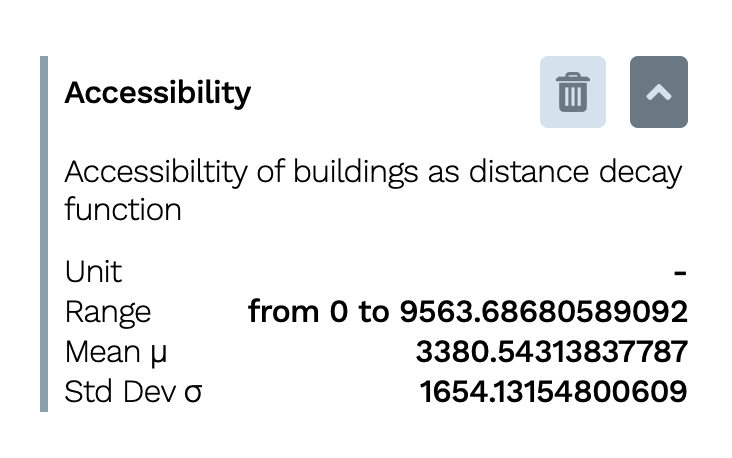
Once the layer is selected is added to the list of layers available to explore. Expanding the layer will five more information about it, like name, range and other statistical measures.
Edit
The menu Edit allows to customize the layers selected according to difference thresholds and providing a "relevance" that will be used to compute weights for different layers
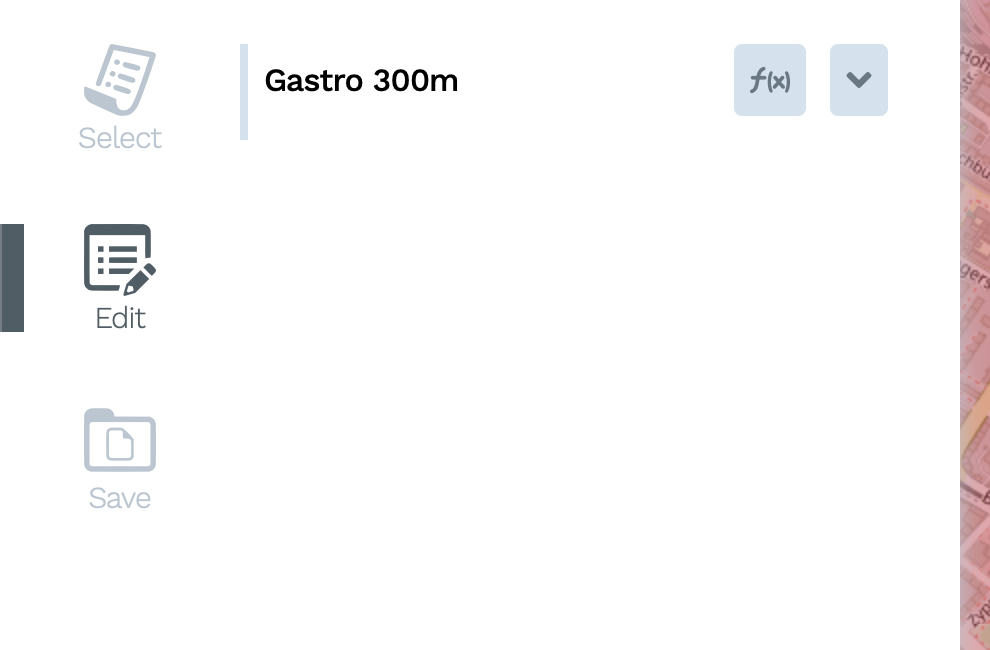
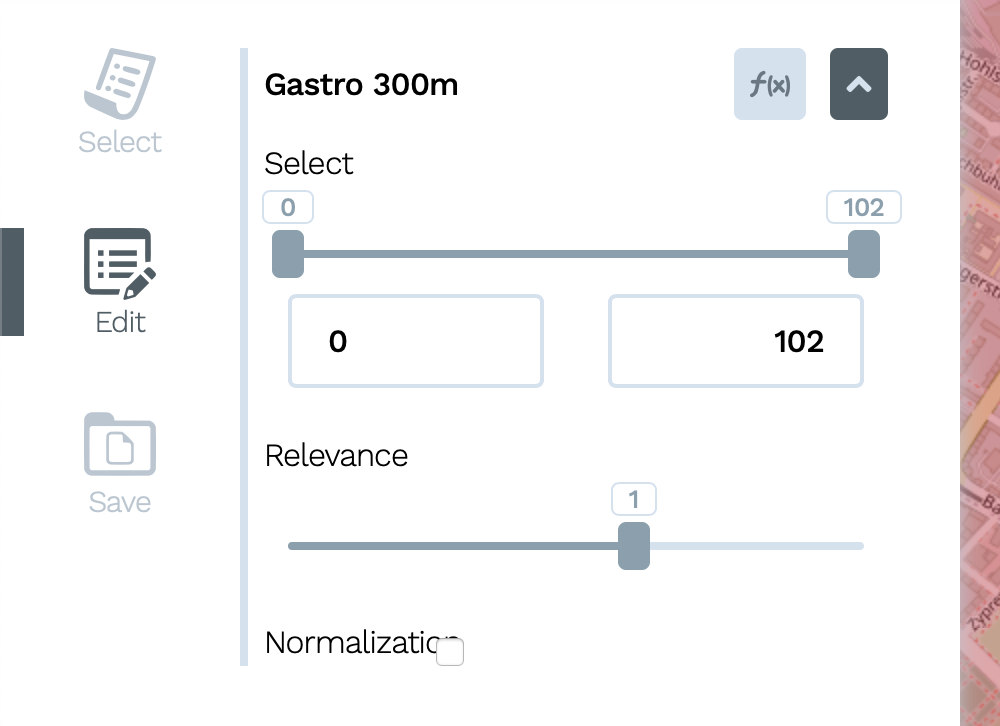
Clicking on the icon formula allows the insertion of precise formulas and weight for more precise control of the layers.

Save
Once layers are edited they can be combined in Subratings or Ratings using the Save icon. Subratings are combination of layers that can be used to created more complex Ratings

Creating markers for objects
To create a marker on the map, the user can user right-click anywhere inside the map, and new marker appears at the location of the click. This opens a new menu Object that will show different options related to this marker.

Clear location
Clear location removes the existing marker from the map
Add to manager
Press Add to Manager if you want to insert this marker into a portfolio as a new building
Export Maps
By clicking Export Maps user, a new Html page is created that allows printing the active layers with the legend. The map outbounds are those of the window that is active when pressing the button.
Create Report
This button allows to create reports using the marker position that can be explored in profiler.