Manager
Manager is the Module of UrbanDataLab that allows you to manage and interact with real estate assets through tables at different levels that provide information and access to documents. You can access Manager by clicking on the top bar item that symbolizes a table.

Manager screen
In Manager, user can navigate between levels of definition (side bar), explore data (table views), add notes (note edit box) and import/export/recalculate values (action bar).
Side bar
On the side bar on the left, there are 4 levels of definition. Portfolio, Property, Buildings and Units. These buttons allow the navigation among those levels.
Portfolio level
This button allows access to the portfolios of the organization. Select the table of the portfolio you want to see and click on the icon "i" to go the properties contained in this portfolio.
If you select a portfolio and switch to scout, you can see the buildings (those wiht correct coordinates) in their location.
Create a new portfolio
To create a new portfolio, you must click the import data button on the action bar.
There are 2 ways to create a portfolio: using CSV files, or creating an empty portfolio and adding object to it.
Create porfolio with CSV files
To create a portfolio with CSV files, you need 3 CSV files, one for each level. 1 for properties, 1 for buildings, and 1 for units.
CSV files can be exported directly form Excel tables. The structure of the CSV files is fixed, but you can download a sample in an excel file here
Property level
The property button gives access to the property level of the portfolio selected (actually there is just 1 portfolio per organisation). On the screen you can see:
- The name of the selected property on the top bar
- The edit box of the selected property on the upper center to the right part of the screen
- The action buttons on the upper middle left part
- The table of contents on the center toward the bottom of the screen

Action buttons at property level
The action buttons allow:
- Import of data of properties on a portfolio (at the moment only on CSV format)
- Recalculate again the whole portfolio values
- Export the whole porfolio as CSV.

At the moment the dataroom option is not ready. This placeholder will be active in a following version.
Properties table
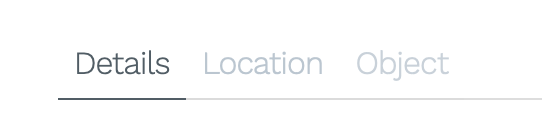
The properties table is divided in three tabs:
- Details - Contianing general information about the selected property
- Location - Containing values with location data selected in Scout
- Object - Not available at the moment.
User can override values by cliking on the cell, and saving it. If the value to override is of a location cell, this will change the color to show the change. If the user wants to come back to the original values, he can press the button recalculate to do so.
Cliking on the info button on the selected property allows to move down to building level on this especific property.
Building level
The building button gives access to the building level of the property selected. On the screen you can see:
- The name of the selected building on the top bar
- The edit box of the selected building on the upper center to the right part of the screen
- The action buttons on the upper middle left part
- The table of contents on the center toward the bottom of the screen
Action buttons at building level
The action buttons allow:
- Import of data of building in a property (at the moment only on CSV format)
- Recalculate again the whole property values
- Export the whole property as CSV.
At the moment the dataroom option is not ready. This placeholder will be active in a following version.
Buildings table
The buildings table is divided in three tabs:
- Details - Containing general information about the selected building
- Location - Containing values with location data selected in Scout
- Object - Not available at the moment.
On the top of the table, where the name of the property is, the user can click and select another property to move to, without needing to move to the property level and back to building.

User can override values by cliking on the cell, and saving it. If the value to override is of a location cell, this will change the color to show the change. If the user wants to come back to the original values, he can press the button recalculate to do so.
Cliking on the info button on the selected building allows to move down to unit level on this especific building.

Cliking on the recalculate button on the selected building calculate againg the values on the location tab. Any values previously override by the user on this building will be lost.
Cliking on the delete button on the selected building allows to move down to unit level on this especific building.
Unit level
The unit button gives access to the unit level of the building selected. On the screen you can see:
- The name of the selected unit on the top bar
- The edit box of the selected unit on the upper center to the right part of the screen
- The action buttons on the upper middle left part
- The table of contents on the center toward the bottom of the screen
Action buttons at unit level
The action buttons allow:
- Import of data on units of a builing (at the moment only on CSV format)
- Recalculate again the whole building values
- Export the whole units on this building as CSV.
At the moment the dataroom option is not ready. This placeholder will be active in a following version.
Units table
The units table is divided in three tabs:
- Details - Containing general information about the selected unit
- Location - Containing values with location data selected in Scout
- Object - Not available at the moment.
On the top of the table, where the name of the property is, the user can click and select another property to move to, without needing to move to the property level and back to building.
User can override values by cliking on the cell, and saving it. If the value to override is of a location cell, this will change the color to show the change. If the user wants to come back to the original values, he can press the button recalculate to do so.
Cliking on the info button on the selected building allows to move down to unit level on this especific building.