How to
Ratings
Query attribute, sub-rating or millieurating
-
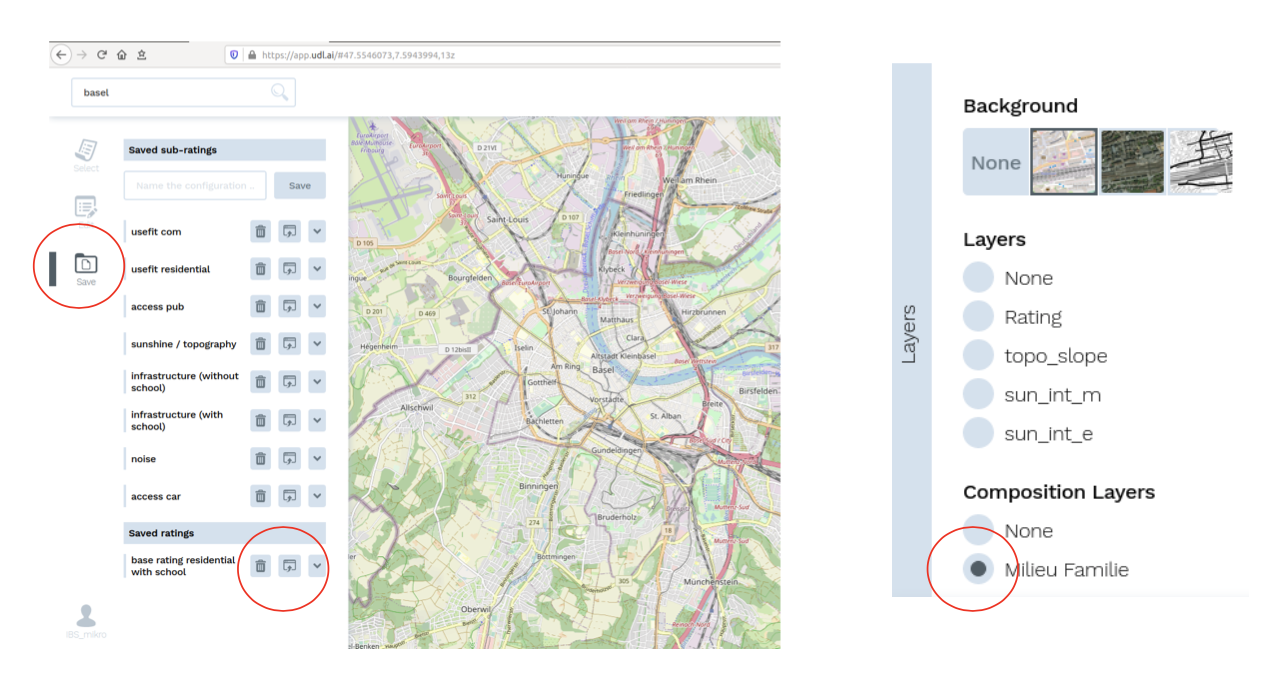
Load individual rating under Save with this symbol:
 . Alternatively load a single layer under Select.
 -
Then right click on map at point of interest. The value is shown in the pop-up.
-
Heat map can only show one layer at a time (the last loaded one with ), but the popup also shows previously loaded ones.
-
these can also be removed from the pop-up with a click on x

Load layer for milieu rating
-
Select the 'Save' tab.
-
List 'Saved ratings' contains the milieu ratings.
-
Load individual layers with this symbol:
-
Select the appropriate layer under 'Composition Layers'.
View microratings in portfolio
Ratings are created and saved in Scout and are then available in the manager at unit level. The ratings are aggregated to buildings and properties, weighted by area.
-
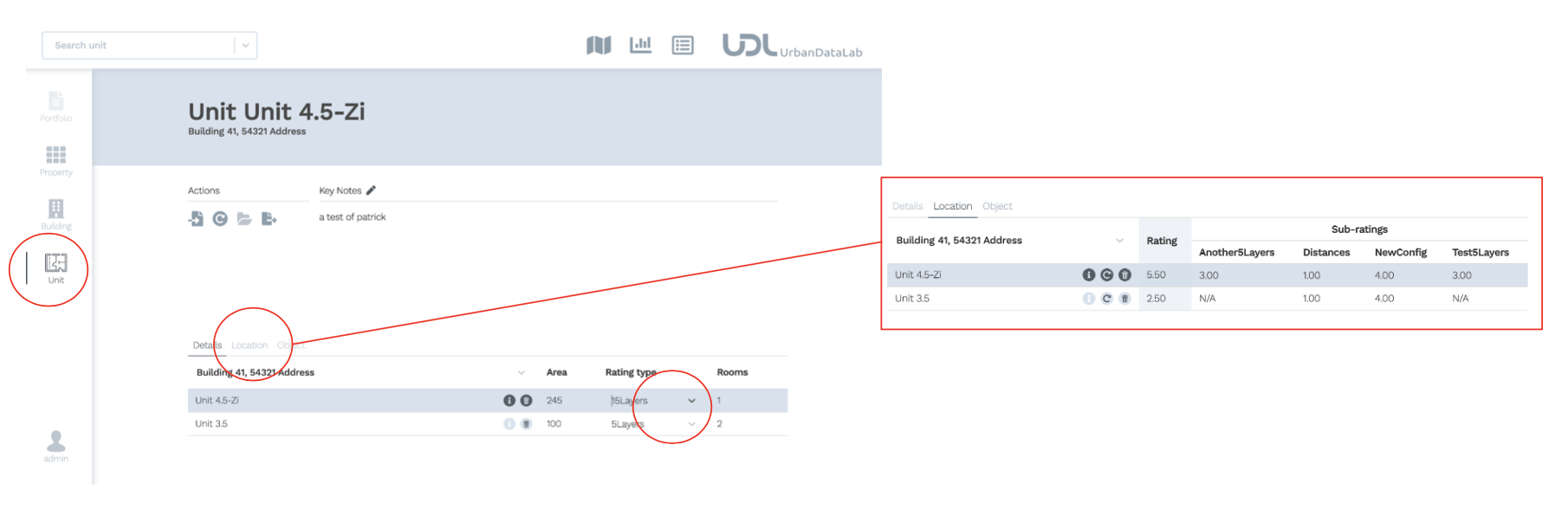
select scale level Unit.
-
Select the saved rating by dropdown.
-
Select scale level of interest, e.g. Property
-
Select the Location tab to see the details
Manually override micro-ratings and details in the manager
- Select scale level, e.g. Property.
- Select the Location tab to see the details.
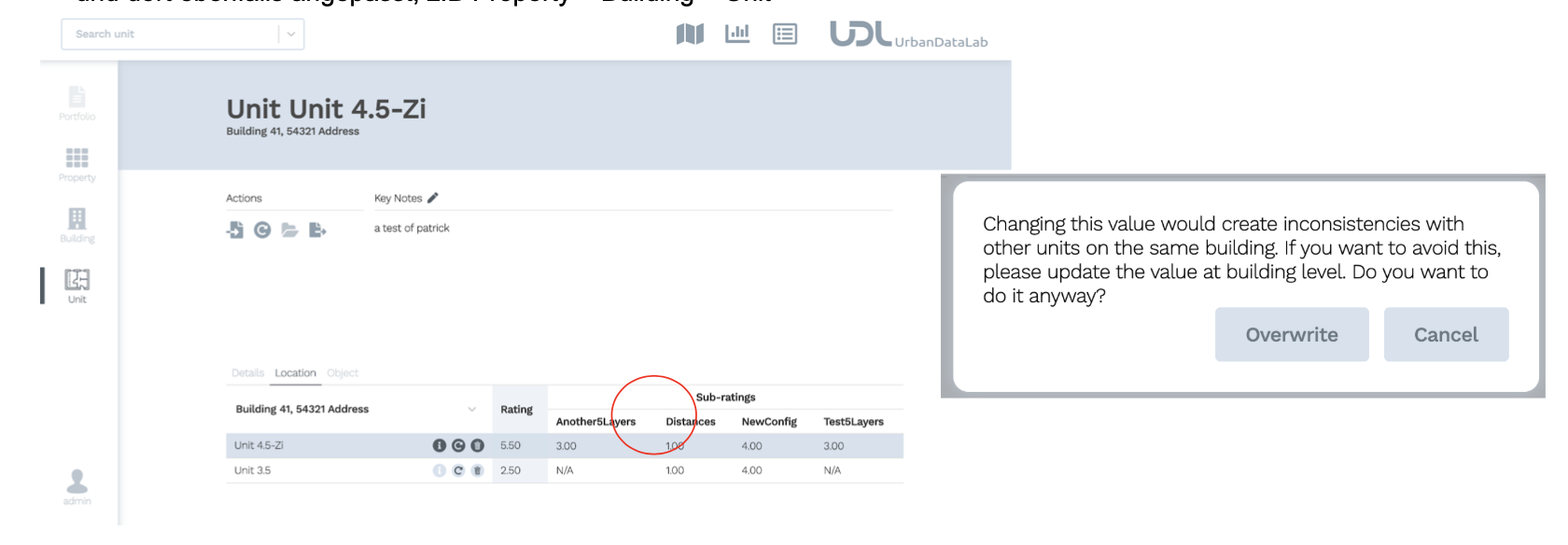
- Click on a value in the table and change it.
- Confirm the change in the popup with Overwrite.
Important:
- Manual overrides in the Location tab are visible and are bold and underlined.
- Changes to the object details are not shown.
- The recalculation of the ratings on all scale levels is done automatically.
- Changes on the levels Portfolio, Property and Building are passed on to the smaller scale levels and also adjusted there, e.g. Property > Building > Unit
Undo manual override in manager
-
A change can be made by resetting the symbol.
-
The values are then recalculated from the current data in Scout.
-
The recalculation can be performed for an entire line or for all objects of a scale level.
-
Changes are passed on to the lower scale levels.

Important:
Changes are passed on to the lower scale levels.